
On this page
SkuSync Documentation
Use SkuSync to convert Shopify and SHOPLINE CSV or SHOPLINE 1.0 XLSX product exports, review JSON Schema validation rules, llms.txt summaries, and NDJSON records, and prepare imports between Shopify and SHOPLINE. This guide also explains AI Readiness Checker signals and how to deploy downloaded files.
rocket_launch Why use SkuSync?
Choose the output for your task: JSON Schema describes validation rules, NDJSON contains product records, and llms.txt provides a Markdown catalog summary. File conversion runs locally in your browser. Publishing files and configuring destination systems are separate steps.
1 Getting Started
For JSON Schema, llms.txt, and NDJSON, start with the SkuSync product file converter. For store migration, use the import guides below.
1. Export Data
Export products from Shopify or SHOPLINE. Keep the original headers: Shopify and SHOPLINE 2.0 use CSV; SHOPLINE 1.0 uses XLSX.
2. Upload & Convert
Enter your store URL, upload the CSV or XLSX, and review the detected format and preview. Download the files, verify values and URLs, then deploy llms.txt or NDJSON if you want them available on your site.
AI Readiness Checker
The AI Readiness Checker requests a website's public files and markup through an external scanning service. It checks technical signals, not AI mentions, citations, recommendations, search rankings, or traffic.
Signals and limits
- llms.txt: checks for a Markdown site summary using the proposed convention. Its presence does not establish adoption by an AI service.
- Schema.org: looks for page markup describing products. This is separate from SkuSync's downloaded JSON Schema validation rules.
- NDJSON: looks for machine-readable product records at checked locations. A feed at another location may not be detected.
- robots.txt: checks crawler instructions. A file's presence does not prove that every crawler is allowed or follows those instructions.
- Sitemap: checks a URL discovery signal. A sitemap does not guarantee crawling or indexing.
Run a check and interpret the result
- Open the checker and enter a public website URL. The URL is sent to the external scanning service.
- Select Analyze and wait for the request to finish.
- Review each signal and the tool-specific readiness score from 0 to 100. Discovery, Structure, and Machine Readability summarize the detected signals.
- Verify reported issues on the site itself. Access restrictions, redirects, timeouts, or untested file locations can limit the scan. Unknown or unavailable results are not proof that a file is absent.
- Review and deploy any changes yourself, then scan again. SkuSync does not publish files or add Schema.org markup to your store.
The score is a diagnostic summary, not a validated measure of AI visibility or a ranking forecast. See the implementation references and file deployment notes.
AI Readiness Checker: Implementation References
These examples are implementation references, not automatically generated or deployed by the checker. Replace placeholders with verified site data, choose crawler permissions deliberately, and validate each file before publishing. Example NDJSON does not certify a destination feed. Add JSON-LD to pages separately; SkuSync JSON Schema is a validation rule file.
/llms.txt
# Brand / Site Name

## Docs
- [About](https://example.com/about): Company overview
- [Policies](https://example.com/policies): Policy index

## Products
- [Catalog](https://example.com/products): Product index
/llms-full.md
# Brand Long-form Context

## Policies
...

## Product Knowledge
...

## Support FAQ
...
/products.ndjson
{"item_id":"SKU-1","title":"Demo Product","description":"Short product summary","url":"https://example.com/products/demo","brand":"Brand","seller_name":"Store","seller_url":"https://example.com","is_eligible_search":true}
{"item_id":"SKU-2","title":"Demo Product 2","description":"Short product summary","url":"https://example.com/products/demo-2","brand":"Brand","seller_name":"Store","seller_url":"https://example.com","is_eligible_search":true}
/feed.xml (RSS 2.0)
<?xml version="1.0" encoding="UTF-8"?>
<rss version="2.0">
  <channel>
    <title>Brand Updates</title>
    <link>https://example.com</link>
    <description>Latest updates</description>
  </channel>
</rss>
/robots.txt
User-agent: *
Allow: /
Sitemap: https://example.com/sitemap.xml

User-agent: Google-Extended
Allow: /
/sitemap.xml
<?xml version="1.0" encoding="UTF-8"?>
<urlset xmlns="http://www.sitemaps.org/schemas/sitemap/0.9">
  <url>
    <loc>https://example.com/products/demo</loc>
    <lastmod>2026-03-01T09:00:00Z</lastmod>
  </url>
</urlset>
Meta Robots / X-Robots-Tag
<meta name="robots" content="index,follow,max-snippet:160,max-image-preview:large" />
X-Robots-Tag: index, follow, max-snippet:160
Head Tags (Canonical / Hreflang / OG / Twitter)
<link rel="canonical" href="https://example.com/products/demo" />
<link rel="alternate" hreflang="en-US" href="https://example.com/en/products/demo" />
<link rel="alternate" hreflang="fr-FR" href="https://example.com/fr/products/demo" />
<meta property="og:title" content="Demo Product" />
<meta property="og:description" content="Demo summary" />
<meta property="og:image" content="https://example.com/og.jpg" />
<meta name="twitter:card" content="summary_large_image" />
JSON-LD (Organization / Product / Article)
{
  "@context": "https://schema.org",
  "@type": "Organization",
  "@id": "https://example.com/#organization",
  "name": "Brand"
}
{
  "@context": "https://schema.org",
  "@type": "Article",
  "headline": "How to choose a product"
}
/humans.txt
/* TEAM */
Team: Brand Team
Contact: [email protected]

/* SITE */
Language: en-US
Standards: HTML5, JSON-LD
/.well-known/security.txt
Contact: mailto:[email protected]
Expires: 2027-12-31T23:59:59Z
Preferred-Languages: en, zh
Shopify & SHOPLINE CSV/XLSX Structure
SkuSync detects Shopify and SHOPLINE 2.0 CSV headers and SHOPLINE 1.0 XLSX headers. Preserve the original column names and confirm the platform in the preview. SHOPLINE 1.0 exports may lack image URLs, so check image data separately.
Handle,Title,Body (HTML),Vendor,Variant Price,Image Src
classic-tee,"Classic Cotton Tee","<p>100% organic cotton</p>",BrandX,29.99,https://.../tee.jpg
slim-jeans,"Slim Fit Denim","<p>Indigo wash</p>",BrandX,89.00,https://.../jeans.jpgPro Tip: Automatic Platform Detection
SkuSync automatically detects whether your CSV is from Shopify or SHOPLINE by analyzing the header structure. No manual configuration needed - just upload and go!
3 Format Specifications
data_object JSON Schema
The JSON Schema download describes product field types, required fields, and validation rules. It contains rules rather than product records. It is not Schema.org Product JSON-LD or a Merchant Center product feed. Adapt the rules to your data and validator; this file does not certify a destination integration.
description llms.txt
The llms.txt proposal uses Markdown to present site information to language model tools. SkuSync generates a catalog summary from your export. Review its content and product links, then deploy it at a public URL such as /llms.txt. Downloading it does not publish it or guarantee AI use, crawling, mentions, or rankings.
# Product Catalog Context
## Classic Cotton Tee
ID: 10234
Price: $29.99
Description: 100% organic cotton, pre-shrunk, available in earth tones.
## Slim Fit Denim
ID: 10235
...
code NDJSON (Newline Delimited JSON)
NDJSON stores one product JSON object per line. Review identifiers, URLs, prices, currency, availability, and variants before using the records. Deploy the file or import it into a compatible system yourself. A valid NDJSON file is not a guarantee of acceptance or compliance by OpenAI, Merchant Center, or another service.
Usage Guide: Review and Deploy Outputs
- In SkuSync, enter the correct store URL before uploading product files so generated links use the intended domain.
- Review the detected format and source preview. Download JSON Schema, llms.txt, NDJSON, or the ZIP archive.
- Use JSON Schema as validation rules in a compatible validator. Inspect the actual NDJSON records separately; do not assume all fields or defaults meet the destination's requirements.
- Check product links, image URLs, prices, currency, stock, identifiers, and variants. Validate any feed against its destination's current rules before submission. SkuSync does not guarantee compliance or approval.
- To publish llms.txt and NDJSON, upload them to hosting you control and expose public file URLs. Verify the response contains the file content, not an error page or login page. Review access rules and refresh the files when catalog data changes.
- Add Schema.org Product markup to product pages separately if needed. A JSON Schema download does not create this markup.
SkuSync does not deploy files, submit feeds, or schedule catalog synchronization. For SHOPLINE 2.0 hosting, see root file deployment. For migration, follow the two import guides below.
Import SHOPLINE CSV or SHOPLINE 1.0 XLSX into Shopify
Use the SHOPLINE to Shopify CSV converter for SHOPLINE 2.0 CSV or SHOPLINE 1.0 XLSX product exports.
- Export products from SHOPLINE and keep the original headers. Save a backup of the source and any existing Shopify catalog.
- Upload the CSV or XLSX in the converter. Confirm the detected platform and review the field mapping, sample values, product count, and variants.
- Download the Shopify CSV. Review handles, SKU values, variant options, prices, inventory, and image URLs. Check repeated handles against existing Shopify products before choosing any overwrite option.
- In Shopify admin, open Products, then Import, and select the converted CSV. Review the import preview and settings before confirming; try a small batch first.
- Check imported products, variants, inventory, and images. SHOPLINE 2.0 image URLs must stay accessible during import. SHOPLINE 1.0 XLSX exports do not provide image URLs; add missing images separately.
This is a product file conversion. Review destination requirements and import results; the file does not migrate orders, customers, themes, or store settings. For the reverse direction, see Shopify to SHOPLINE 1.0.
Import Shopify CSV into SHOPLINE 1.0 as XLSX
Use the Shopify CSV to SHOPLINE 1.0 XLSX converter. This output targets the SHOPLINE 1.0 template, not SHOPLINE 2.0 CSV import.
- In Shopify admin, open Products, then Export, and download a product CSV. Preserve standard headers such as Handle, Title, Variant SKU, and Variant Price.
- Upload the CSV in the converter. Review the field mapping, sample values, product count, variant rows, and image count.
- Download the SHOPLINE 1.0 XLSX. Compare it with the template accepted by your store and review names, options, SKU, quantity, price, weight, barcode, and image URLs.
- In SHOPLINE 1.0 admin, open the product bulk import workflow, select the XLSX file, and review any validation messages before confirming. Begin with a small sample and keep a backup before updating existing products.
- Inspect the imported products and variants. Image URLs must be publicly accessible; correct missing images, stock, or other destination-specific fields before importing the rest of the catalog.
The converter prepares a workbook locally and does not connect to your store or run the import. For the reverse direction, see SHOPLINE to Shopify.
folder SHOPLINE 2.0: Publish txt / NDJSON Files at Root Paths
The community tutorial below shows how to upload a text file and redirect a root path to its hosted URL. For downloaded llms.txt or NDJSON files, verify that your store accepts the file type and serves the intended content. Check the final response and redirects; this is a deployment step you perform after downloading.
1. Upload the text file in the admin
Navigate to Settings -> File library -> Upload file -> Add file. The screenshots show the Chinese admin interface.
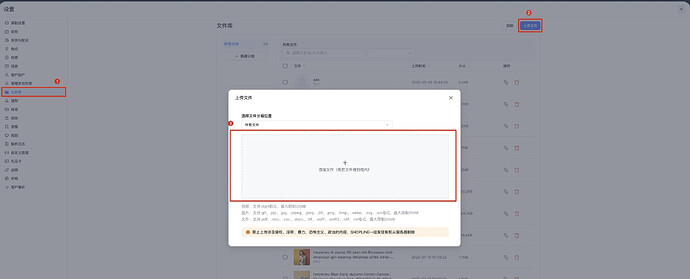
2. Copy the hosted file URL
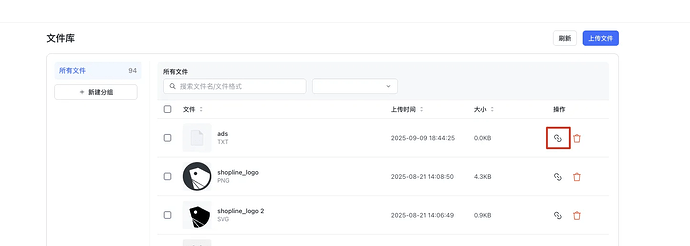
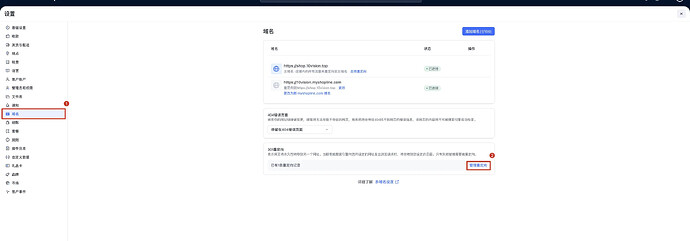
3. Redirect the root path to the hosted file URL
Before configuring the redirect:
- For multiple domains, verify the root file path on each domain after setting the redirect.
- Use the full hosted file URL as the redirect destination, then check that the redirect resolves to the file.
3.1. Open Domains -> Redirects -> Manage redirects
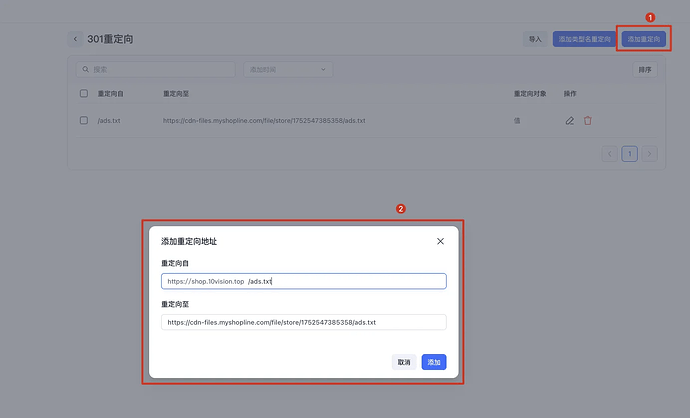
3.2. Add a redirect from the root file path (for example, /llms.txt) to the URL copied in step 2
5 Best Practices
checklist Data Quality Checklist
- check_circle Ensure CSV is UTF-8 encoded for proper character handling
- check_circle Preserve the platform export headers and verify the fields needed for your output
- check_circle Check for duplicate SKUs to avoid data conflicts
- check_circle Validate image URLs are accessible and properly formatted
- check_circle Remove any unnecessary HTML from product descriptions
dataset Large Dataset Strategy
- tips_and_updates Split files larger than 10,000 products for better performance
- tips_and_updates Use batch mode for multiple files to merge results efficiently
- tips_and_updates Monitor browser memory usage when processing large datasets
- tips_and_updates Consider using NDJSON for streaming large datasets to databases
integration_instructions Integration Best Practices
- tips_and_updates Keep private backups of exported product data for comparison and rollback
- tips_and_updates Create automated CI/CD pipelines for regular data updates
- tips_and_updates Refresh deployed files when products change; SkuSync does not schedule updates
- tips_and_updates Deploy llms.txt at a public URL and verify its content and links
Troubleshooting
What's the maximum file size supported? expand_more
How are special characters in product titles handled? expand_more
How can I improve conversion speed for large files? expand_more
• Use a modern browser (Chrome or Edge recommended)
• Close unnecessary browser tabs to free up memory
• Ensure your device has sufficient RAM (4GB+ recommended)
• Use batch mode for multiple smaller files instead of one large file
Is my data sent to any server? expand_more
My file is not parsing correctly expand_more
Images are missing in the output expand_more
Image Src column. If your export uses a different header (e.g., from a custom app), rename the column header to Image Src before uploading.
What are the triples in NDJSON? expand_more
What browsers are supported? expand_more
Can I upload the JSON Schema to Google Merchant Center? expand_more
The JSON Schema download contains validation rules, not product records. It is not a Merchant Center feed or Schema.org Product JSON-LD. Prepare actual product data in a supported destination format and validate it against current requirements. SkuSync does not guarantee Merchant Center compliance or approval.