100% organic cotton
",BrandX,29.99,https://.../tee.jpg slim-jeans,"Slim Fit Denim","Indigo wash
",BrandX,89.00,https://.../jeans.jpg ``` tips\_and\_updates ##### Pro Tip: Automatic Platform Detection SkuSync automatically detects whether your CSV is from Shopify or SHOPLINE by analyzing the header structure. No manual configuration needed - just upload and go! * * * ## 3 Format Specifications ### data\_object JSON Schema The JSON Schema download describes product field types, required fields, and validation rules. It contains rules rather than product records. It is not Schema.org Product JSON-LD or a Merchant Center product feed. Adapt the rules to your data and validator; this file does not certify a destination integration. { "type": "object", "properties": { "title": { "type": "string" }, "price": { "type": "number" } ... } } ### description llms.txt The llms.txt proposal uses Markdown to present site information to language model tools. SkuSync generates a catalog summary from your export. Review its content and product links, then deploy it at a public URL such as `/llms.txt`. Downloading it does not publish it or guarantee AI use, crawling, mentions, or rankings. ``` # Product Catalog Context ## Classic Cotton Tee ID: 10234 Price: $29.99 Description: 100% organic cotton, pre-shrunk, available in earth tones. ## Slim Fit Denim ID: 10235 ... ``` ### code NDJSON (Newline Delimited JSON) NDJSON stores one product JSON object per line. Review identifiers, URLs, prices, currency, availability, and variants before using the records. Deploy the file or import it into a compatible system yourself. A valid NDJSON file is not a guarantee of acceptance or compliance by OpenAI, Merchant Center, or another service. ## Usage Guide: Review and Deploy Outputs 1. In [SkuSync](/skusync/), enter the correct store URL before uploading product files so generated links use the intended domain. 2. Review the detected format and source preview. Download JSON Schema, llms.txt, NDJSON, or the ZIP archive. 3. Use JSON Schema as validation rules in a compatible validator. Inspect the actual NDJSON records separately; do not assume all fields or defaults meet the destination's requirements. 4. Check product links, image URLs, prices, currency, stock, identifiers, and variants. Validate any feed against its destination's current rules before submission. SkuSync does not guarantee compliance or approval. 5. To publish llms.txt and NDJSON, upload them to hosting you control and expose public file URLs. Verify the response contains the file content, not an error page or login page. Review access rules and refresh the files when catalog data changes. 6. Add Schema.org Product markup to product pages separately if needed. A JSON Schema download does not create this markup. SkuSync does not deploy files, submit feeds, or schedule catalog synchronization. For SHOPLINE 2.0 hosting, see [root file deployment](#shopline-root-files). For migration, follow the two import guides below. ## Import SHOPLINE CSV or SHOPLINE 1.0 XLSX into Shopify Use the [SHOPLINE to Shopify CSV converter](/convert-shopline-csv-to-shopify-format/) for SHOPLINE 2.0 CSV or SHOPLINE 1.0 XLSX product exports. 1. Export products from SHOPLINE and keep the original headers. Save a backup of the source and any existing Shopify catalog. 2. Upload the CSV or XLSX in the converter. Confirm the detected platform and review the field mapping, sample values, product count, and variants. 3. Download the Shopify CSV. Review handles, SKU values, variant options, prices, inventory, and image URLs. Check repeated handles against existing Shopify products before choosing any overwrite option. 4. In Shopify admin, open Products, then Import, and select the converted CSV. Review the import preview and settings before confirming; try a small batch first. 5. Check imported products, variants, inventory, and images. SHOPLINE 2.0 image URLs must stay accessible during import. SHOPLINE 1.0 XLSX exports do not provide image URLs; add missing images separately. This is a product file conversion. Review destination requirements and import results; the file does not migrate orders, customers, themes, or store settings. For the reverse direction, see [Shopify to SHOPLINE 1.0](#shopify-to-shopline). ## Import Shopify CSV into SHOPLINE 1.0 as XLSX Use the [Shopify CSV to SHOPLINE 1.0 XLSX converter](/convert-shopify-csv-to-shopline-xlsx/). This output targets the SHOPLINE 1.0 template, not SHOPLINE 2.0 CSV import. 1. In Shopify admin, open Products, then Export, and download a product CSV. Preserve standard headers such as Handle, Title, Variant SKU, and Variant Price. 2. Upload the CSV in the converter. Review the field mapping, sample values, product count, variant rows, and image count. 3. Download the SHOPLINE 1.0 XLSX. Compare it with the template accepted by your store and review names, options, SKU, quantity, price, weight, barcode, and image URLs. 4. In SHOPLINE 1.0 admin, open the product bulk import workflow, select the XLSX file, and review any validation messages before confirming. Begin with a small sample and keep a backup before updating existing products. 5. Inspect the imported products and variants. Image URLs must be publicly accessible; correct missing images, stock, or other destination-specific fields before importing the rest of the catalog. The converter prepares a workbook locally and does not connect to your store or run the import. For the reverse direction, see [SHOPLINE to Shopify](#shopline-to-shopify). ## folder SHOPLINE 2.0: Publish txt / NDJSON Files at Root Paths The community tutorial below shows how to upload a text file and redirect a root path to its hosted URL. For downloaded `llms.txt` or NDJSON files, verify that your store accepts the file type and serves the intended content. Check the final response and redirects; this is a deployment step you perform after downloading. Source: [How to publish a txt file at a root path (SHOPLINE Community, Chinese)](https://community.shoplineapp.cn/t/topic/60) ### 1\. Upload the text file in the admin Navigate to Settings -> File library -> Upload file -> Add file. The screenshots show the Chinese admin interface. 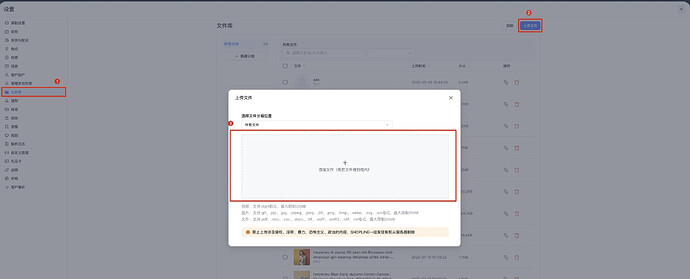 ### 2\. Copy the hosted file URL 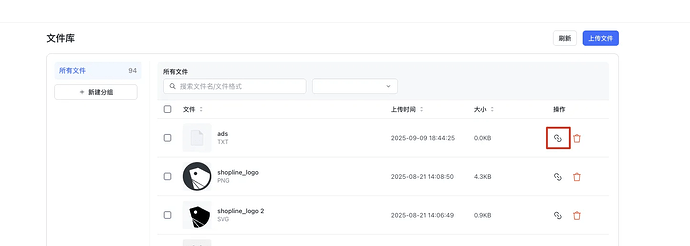 ### 3\. Redirect the root path to the hosted file URL Before configuring the redirect: - For multiple domains, verify the root file path on each domain after setting the redirect. - Use the full hosted file URL as the redirect destination, then check that the redirect resolves to the file. #### 3.1. Open Domains -> Redirects -> Manage redirects 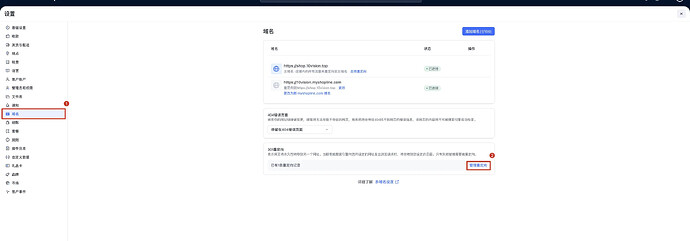 #### 3.2. Add a redirect from the root file path (for example, /llms.txt) to the URL copied in step 2 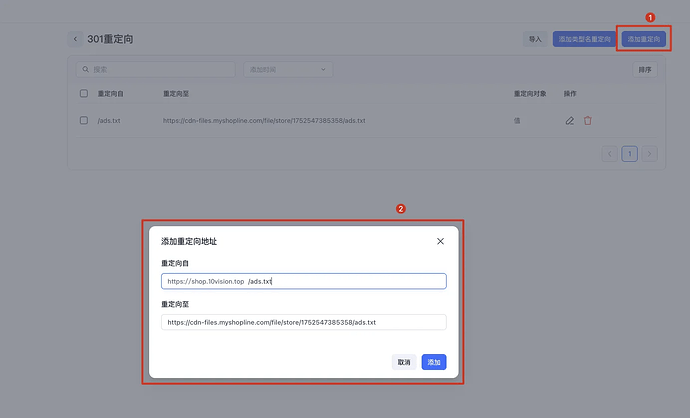 ## 5 Best Practices ### checklist Data Quality Checklist - check\_circle Ensure CSV is UTF-8 encoded for proper character handling - check\_circle Preserve the platform export headers and verify the fields needed for your output - check\_circle Check for duplicate SKUs to avoid data conflicts - check\_circle Validate image URLs are accessible and properly formatted - check\_circle Remove any unnecessary HTML from product descriptions ### dataset Large Dataset Strategy - tips\_and\_updates Split files larger than 10,000 products for better performance - tips\_and\_updates Use batch mode for multiple files to merge results efficiently - tips\_and\_updates Monitor browser memory usage when processing large datasets - tips\_and\_updates Consider using NDJSON for streaming large datasets to databases ### integration\_instructions Integration Best Practices - tips\_and\_updates Keep private backups of exported product data for comparison and rollback - tips\_and\_updates Create automated CI/CD pipelines for regular data updates - tips\_and\_updates Refresh deployed files when products change; SkuSync does not schedule updates - tips\_and\_updates Deploy llms.txt at a public URL and verify its content and links ## Troubleshooting What's the maximum file size supported? expand\_more The main converter accepts CSV and XLSX files up to 50 MB. The combined batch must also fit within 50 MB. Split larger exports and process separate batches; batch mode merges the selected files, not their upload limits. How are special characters in product titles handled? expand\_more The parser correctly handles quoted fields containing commas, newlines, and special characters. Ensure your CSV uses proper quoting (double quotes) around fields that contain special characters. How can I improve conversion speed for large files? expand\_more For optimal performance with large files: • Use a modern browser (Chrome or Edge recommended) • Close unnecessary browser tabs to free up memory • Ensure your device has sufficient RAM (4GB+ recommended) • Use batch mode for multiple smaller files instead of one large file Is my data sent to any server? expand\_more Product file parsing and conversion run locally in your browser without uploading the files. The separate AI Readiness Checker sends the entered website URL to an external scanning service. My file is not parsing correctly expand\_more Ensure you are using the default CSV encoding (UTF-8). Some Excel exports use UTF-16LE which may cause issues. Try opening your CSV in a text editor and saving it specifically as UTF-8. Images are missing in the output expand\_more SkuSync looks for the `Image Src` column. If your export uses a different header (e.g., from a custom app), rename the column header to `Image Src` before uploading. What are the triples in NDJSON? expand\_more The converter derives triples from available product fields such as vendor, tags, categories, and title. Review the downloaded records and adapt them for your destination workflow; triples are not Schema.org Product markup. What browsers are supported? expand\_more SkuSync works on all modern browsers including Chrome, Firefox, Safari, and Edge. For the best performance, we recommend using the latest version of Chrome or Edge with JavaScript enabled. Can I upload the JSON Schema to Google Merchant Center? expand\_more The JSON Schema download contains validation rules, not product records. It is not a Merchant Center feed or Schema.org Product JSON-LD. Prepare actual product data in a supported destination format and validate it against current requirements. SkuSync does not guarantee Merchant Center compliance or approval. ## SkuSync Tools and Guides - [CSV/XLSX to JSON Schema, llms.txt & NDJSON](/skusync/) - [AI Readiness Checker](/ai-checker/) - [SkuSync Documentation](/docs/) - [SHOPLINE CSV/XLSX to Shopify CSV](/convert-shopline-csv-to-shopify-format/) - [Shopify CSV to SHOPLINE 1.0 XLSX](/convert-shopify-csv-to-shopline-xlsx/) - [Review and deploy outputs](/docs/#usage-guide) - [Import into Shopify](/docs/#shopline-to-shopify) - [Import into SHOPLINE 1.0](/docs/#shopify-to-shopline) Share to X (Twitter)LinkedInCopy Link (WeChat) [Sline](/) Developer resources and browser tools for SHOPLINE themes, storefronts, and product data. ## Sline - [Sline overview](/) - [Theme Sections](/section/) - [AST Explorer](/sline-ast-explorer/) ## Guides - [Sline language guide](/sline-template/) - [Syntax comparison](/sline-vs-handlebars-vs-liquid/) - [Migration cookbook](/liquid-handlebars-sline/) - [Dawn vs Bottle](/Shopify-Dawn-vs-Shopline-Bottle/) - [OS 3.0 migration](/shopline-transformation/) - [Theme CLI](/sline-theme-cli/) ## MCP - [SHOPLINE Dev MCP](/mcp/) - [Storefront MCP](/storefront-mcp/) - [Shopline MCP](/shopline-mcp/) ## Tools - [SkuSync](/skusync/) - [SHOPLINE to Shopify](/convert-shopline-csv-to-shopify-format/) - [Shopify to SHOPLINE](/convert-shopify-csv-to-shopline-xlsx/) - [AI Readiness Checker](/ai-checker/) - [SkuSync Docs](/docs/) - [Shopline Checker](/shopline-checker/) - [Shopline Helper](/shopline-helper/) - [ImgSEO](/imgseo/) - [ImgSEO Guide](/imgseo-doc/) ## Community & Support - [SHOPLINE documentation](https://developer.shopline.com/docs/sline/) - [GitHub](https://github.com/shoplineos/) - [Report an issue](https://github.com/shoplineos/Bottle/issues) - [Contact](mailto:hi@sline.dev) - [SKU.md](https://sku.md) - [Disclaimer](/disclaimer/) ## Languages [English](/)[简体中文](/zh-cn/)[繁體中文](/zh-tw/)[日本語](/ja/) © 2026 Sline.dev. All rights reserved.